Collection Page
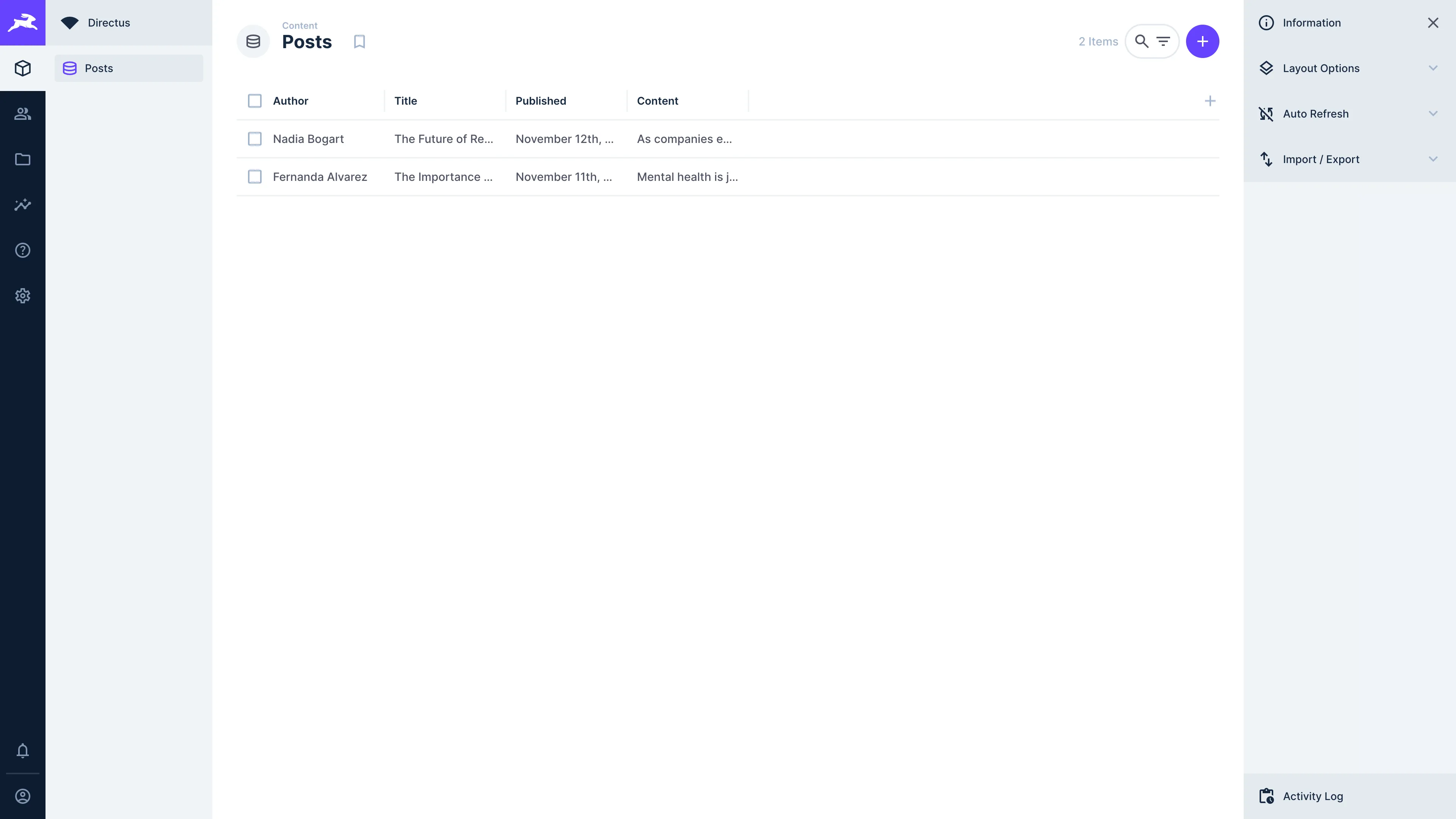
The content module allows users to browse, filter, and search for items held in collections. When users navigate into viewing single items, they use the item page. Each collection page contains data from a single collection, but can display related fields for each item.
To open a collection page, click on the content module on the left hand side of the page.
Filtering Items
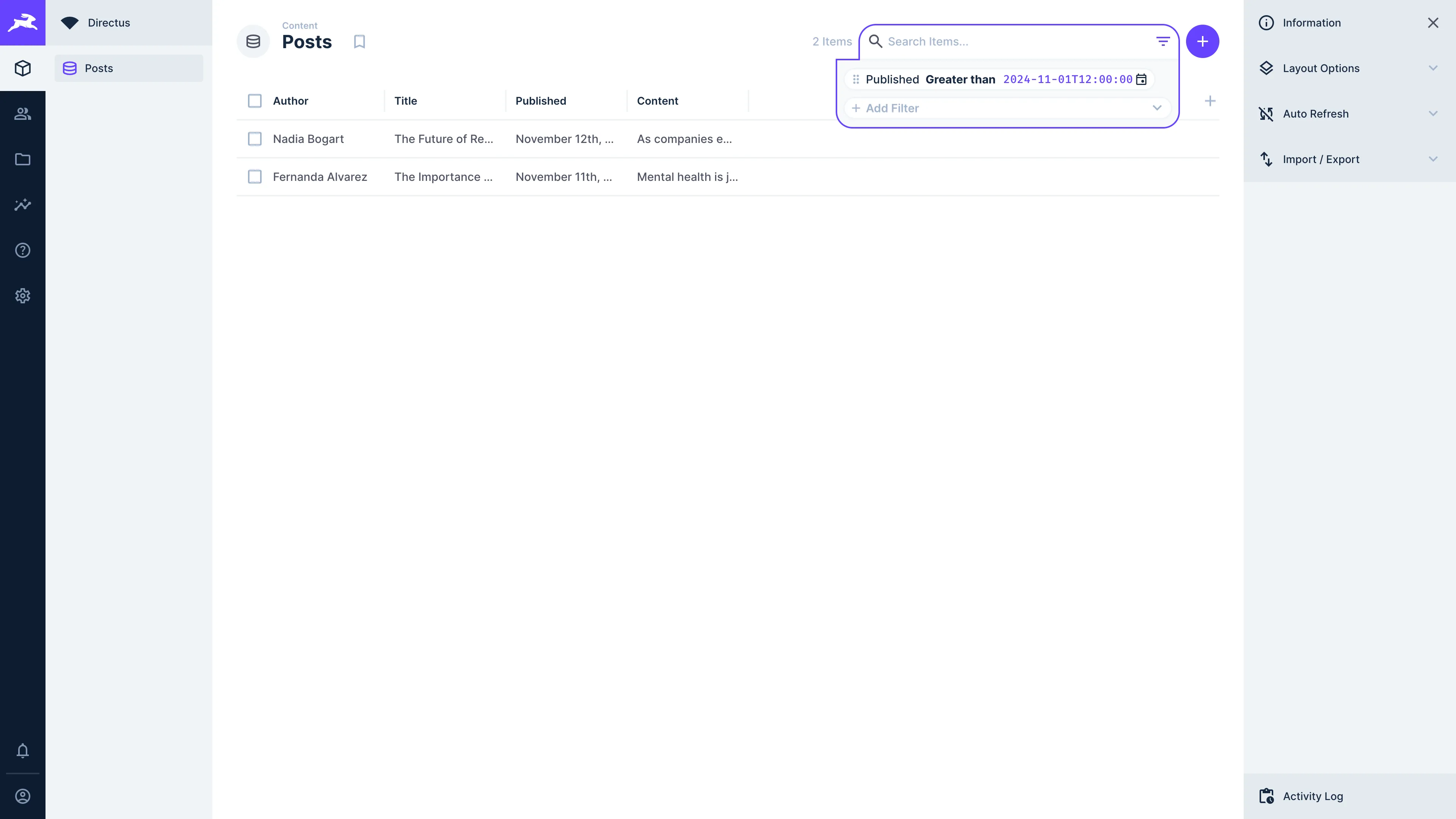
You can create custom filters to display items that fulfill certain criteria.
Click on at the top of the page to create a filter. You can then select a field to filter by and click on the criterion to tweak what should pass for that item to be filtered.
And / Or Groups
AND groups give the option to filter for items that meet all of several criteria. On the other hand, OR groups filter for items that meet any one of several criteria.
In order for filters to be included in AND or OR groups, filters must be indented below them in the filter UI.
Dynamic Variables
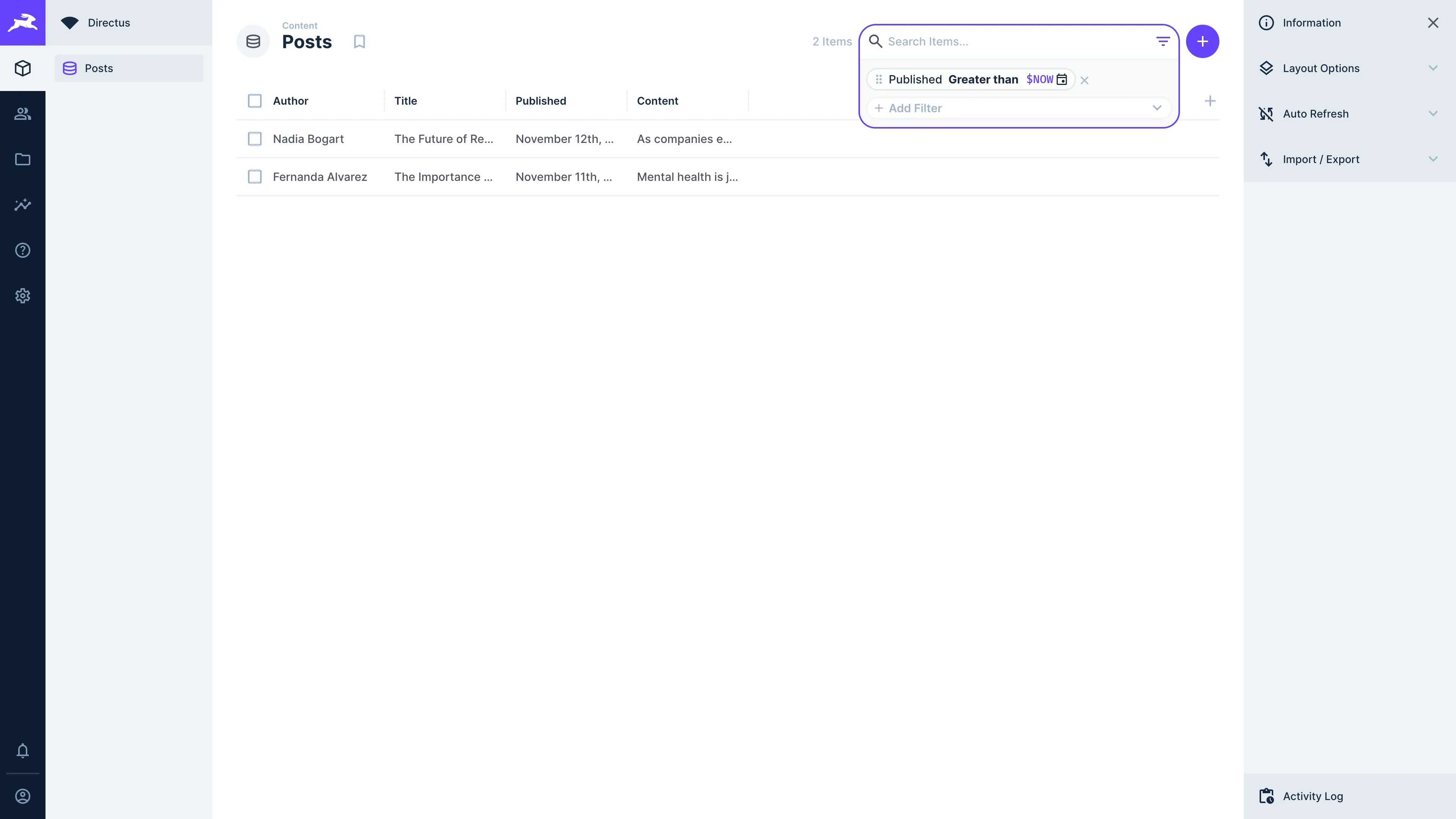
The following dynamic variables are built into Directus to add extra functionality to filters:
$CURRENT_USER— The primary key of the currently authenticated user.$CURRENT_ROLE— The primary key of the role for the currently authenticated user.$CURRENT_ROLES- An array of roles containing the$CURRENT_ROLEand any roles included within it.$CURRENT_POLICIES- An array of policies assigned to the user directly, or through their roles.$NOW— The current timestamp.$NOW(<adjustment>)- The current timestamp plus/minus a given distance, for example$NOW(-1 year),$NOW(+2 hours).
Filtering JSON Fields
You can filter on values stored inside JSON fields. When you select a JSON field in the filter field list, a JSON function entry appears beneath it.
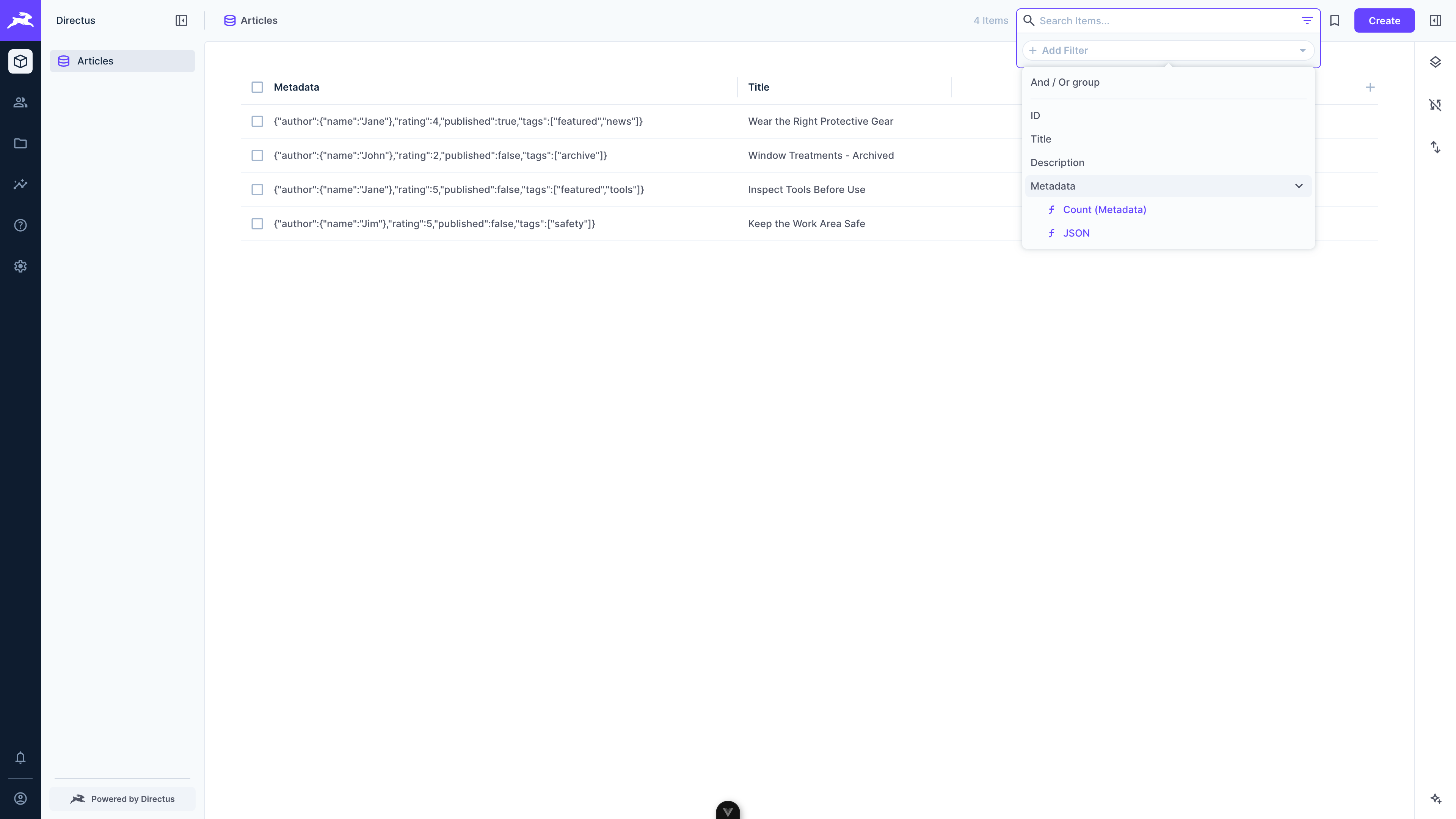
To filter on a JSON field:
- Click on at the top of the page and select the JSON function entry under a JSON field.
- Enter the path to the value you want to filter on, using dot notation for object keys and bracket notation for array indices, for example
author.nameortags[0]. - Select an operator and enter a value.
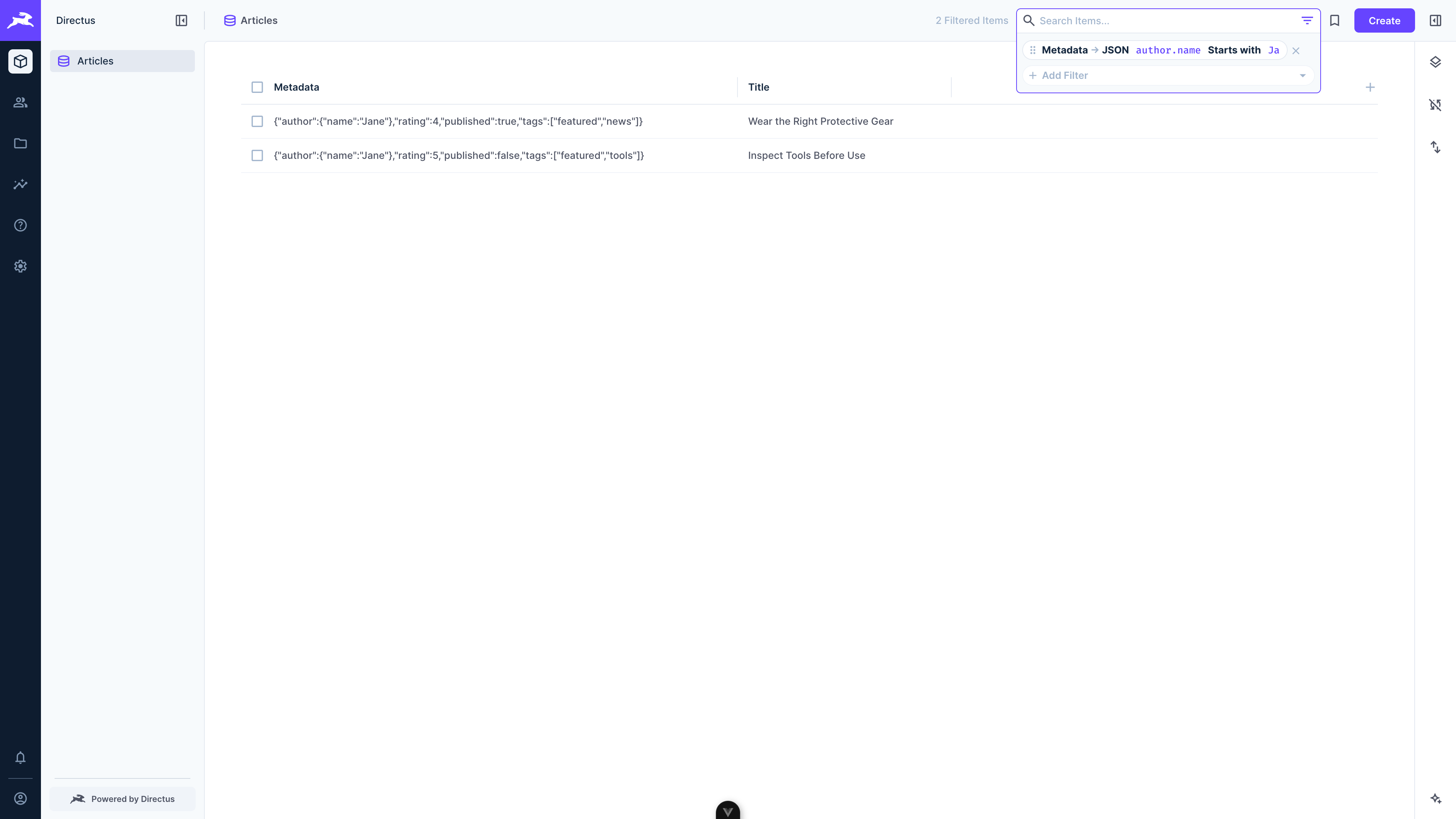
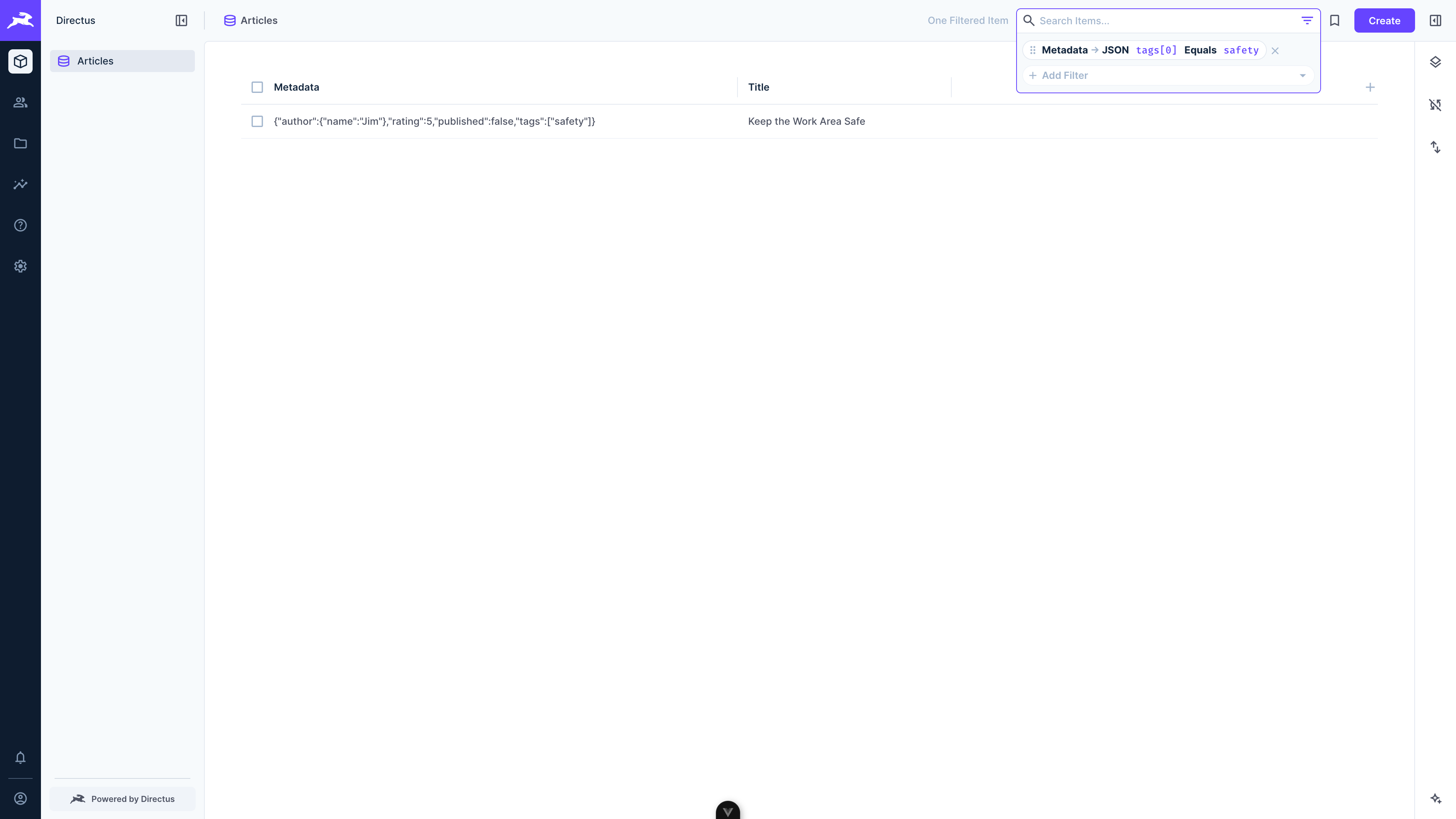
JSON stores typed values, so the value you enter is matched by type:
4is treated as the number4, andtrueas a boolean.- Wrap a value in double quotes to force a string. For example,
"4"matches the string"4"rather than the number4. - String operators such as Contains and Starts with always treat the value as a string, so no quoting is needed.
JSON filters can be combined with other filters, including in AND and OR groups, and support dynamic variables in values.
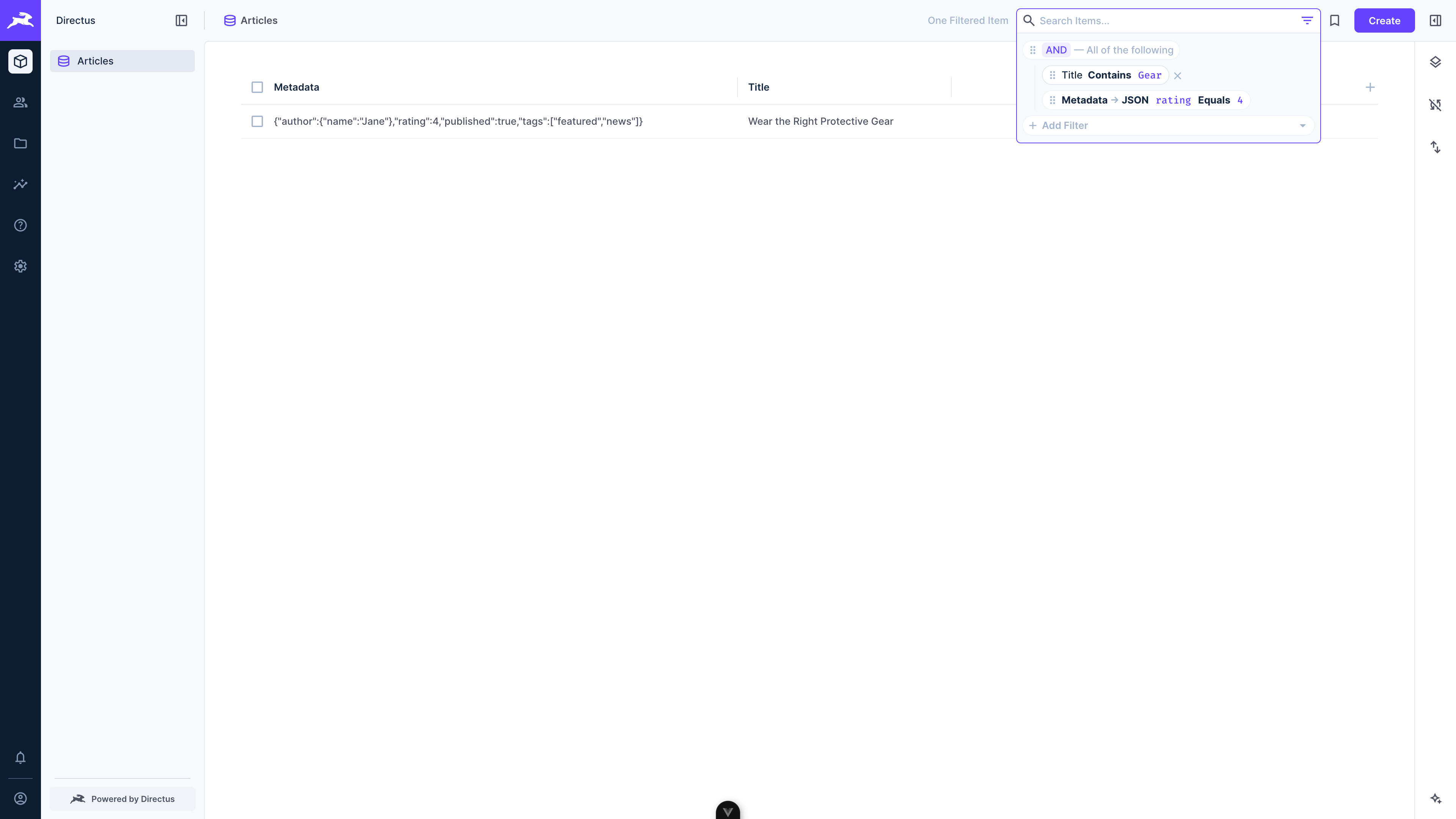
JSON filters are saved as _json filter rules. See Advanced Querying for the full path notation, supported operators, depth limits, and database-specific behavior.
Browsing Draft Versions
When content versioning is enabled for a collection, a Published/Draft selector appears in the collection page header. Use it to switch between viewing published items and their draft versions.
Draft Mode Behavior
In draft mode, the collection page shows items that have pending draft changes, including item-less drafts that have not yet been published. Click on any item to open it directly in its draft version.
The following actions are disabled while in draft mode:
- Batch editing
- Archiving items
- Exporting items
- Manual sorting
- Running Flows from the sidebar
Batch Deleting Drafts
Selecting multiple items in draft mode and deleting them removes the draft versions only - the published items remain untouched. This is useful for discarding draft changes in bulk without affecting live content.
Layouts
Layouts are customized mechanisms for viewing and interacting with the items in a collection. You can select a layout for displaying your collection. Note that restrictions will apply depending on your collection's data model.
Batch Editing
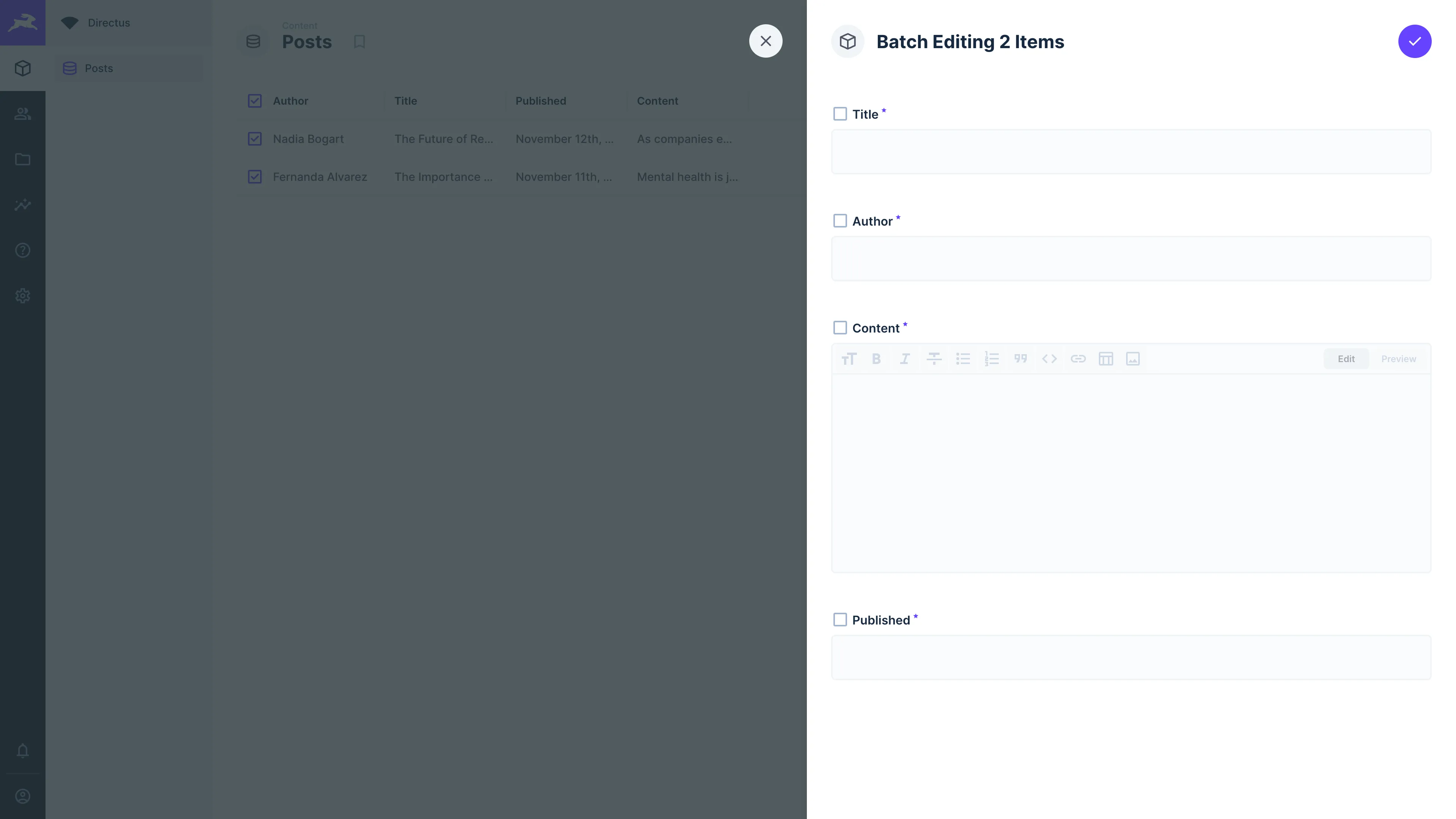
Selecting more than one item on the collection page will allow you to click on and edit several items' fields at once to have the same value.
Bookmarks
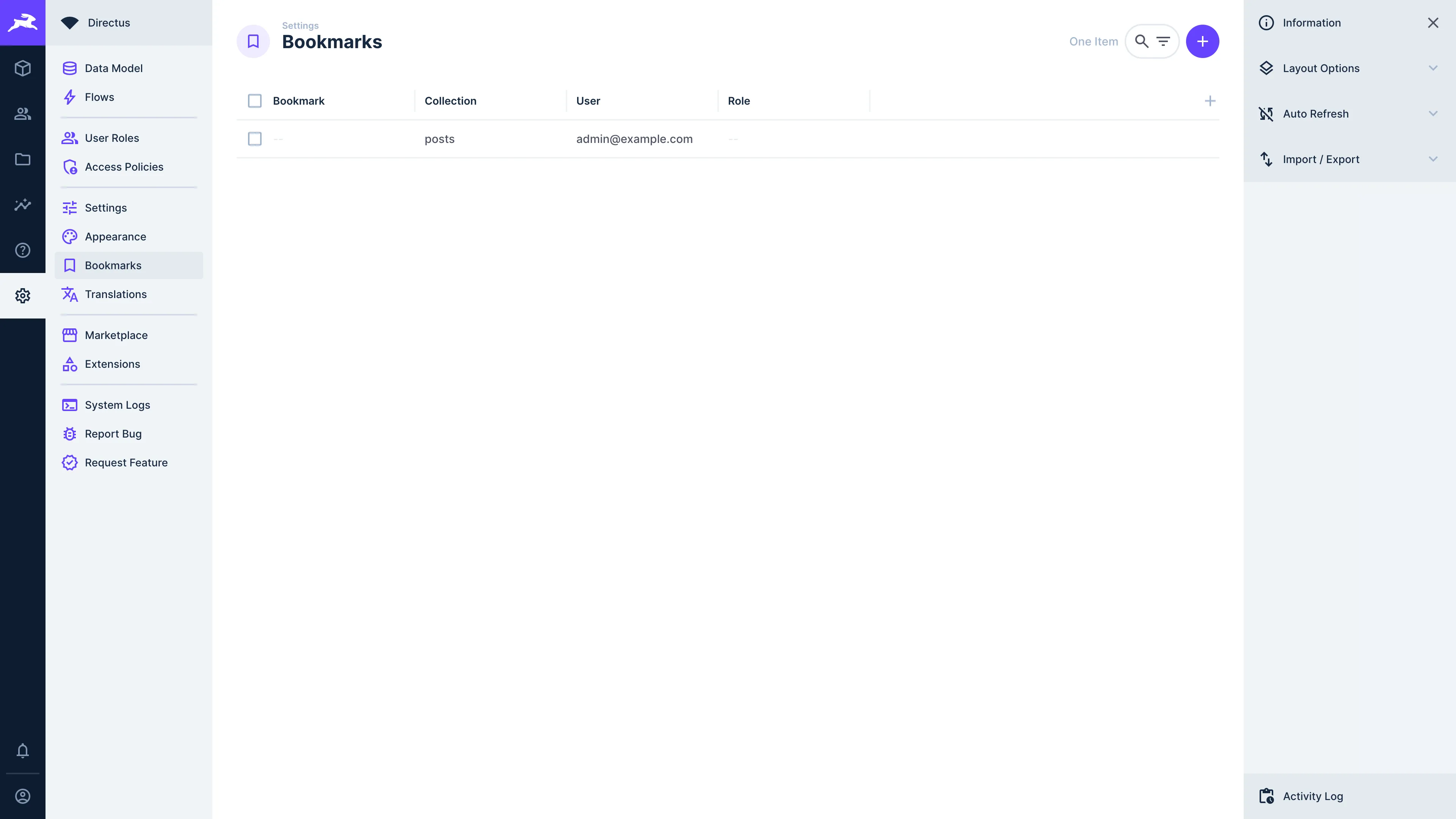
Bookmarks are custom views for your collections that include specified configurations, layouts, visible fields, sorting, filtering and more.
To create a bookmark, navigate to the Settings -> Bookmarks module. Here, you can create a new one by clicking on .
You'll see the "Editing Preset" form, where you can set the name and collection, amongst layout and other values for this bookmark. Note that leaving the name field empty will make it so this bookmark is what is viewed for this collection by default.
Get once-a-month release notes & real‑world code tips...no fluff. 🐰
Relationships
Leverage Directus relationships to create powerful data connections. Explore Many to One, One to Many, Many to Many, and Many to Any relationships, along with Translations for multilingual content management.
Item Page
Learn to create, duplicate, archive and perform other actions with items using Directus.